
Introducing the new Quin
February 9, 2026
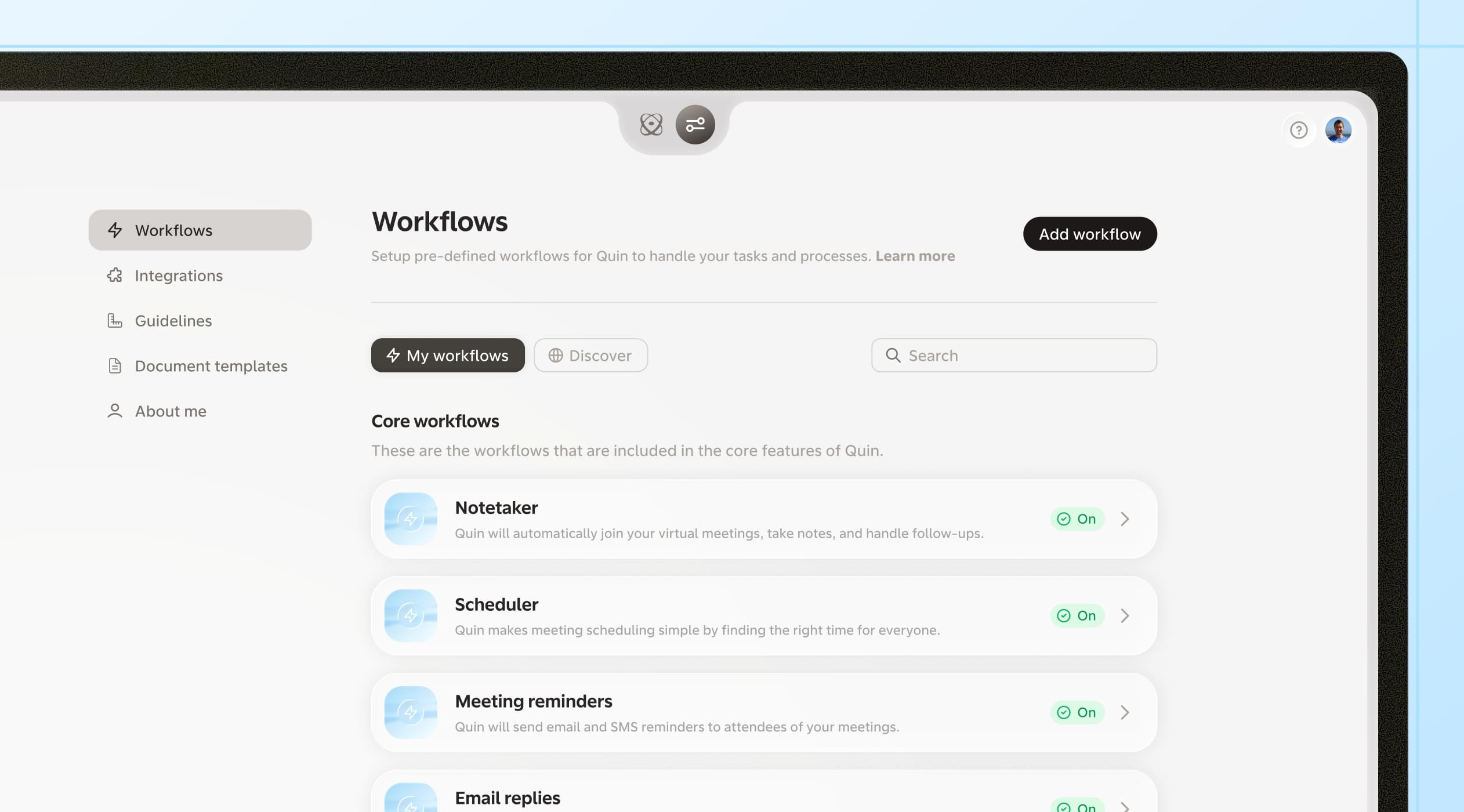
If you've been following along, you know we've been hinting at some changes coming to Quin. Today I want to walk you through what we've built, what's changed, and how to get the most out of it.
The short version: we've redesigned how you set up and customize Quin, and we've made Workflows a much bigger part of the experience.
Workflows
If you've used scheduled tasks before, this will feel familiar. Workflows are the next step — more flexible, easier to set up, and now with a library of pre-built templates you can add with one click.
Workflows are sequences that Quin runs on your behalf. They can run on a recurring schedule, after a meeting ends, or whenever you ask. Monthly recaps, birthday reminders, meeting prep, follow-up emails — the kind of work that matters but tends to slip when you're busy.
Each workflow is a set of instructions you write in plain language. Tell Quin what to check, where to look, and what to send back to you. Once it's set up, it runs without you having to ask again.
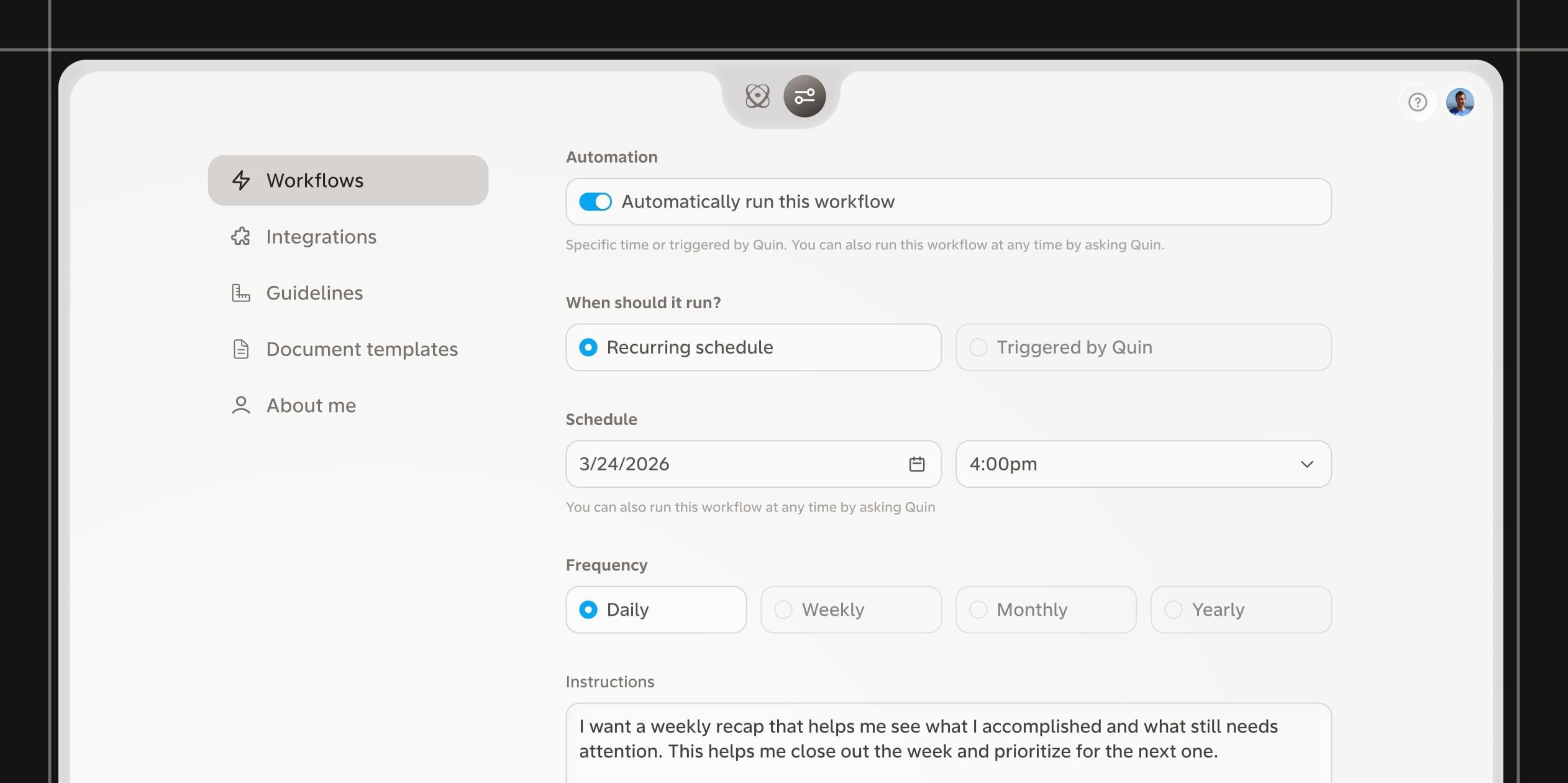
Some workflows come built in, like Meeting notetaker and Daily brief. These have their own settings you can customize. Others you can build yourself from scratch.
And then there are the templates — pre-built workflows you can add with one click. Think of them as cheat codes. Browse what's available, turn on the ones that fit your routine, and customize from there.
A few examples:
- Weekly summary — Review your week and see what's ahead
- Monthly recap — Review your month and track progress
- Birthday and milestone reminders — See which clients have birthdays and anniversaries coming up
- Meeting prep — Get context, attendees, and open items before a meeting
- Client activity report — See your full history with a specific client
Note: Scheduled tasks are now Workflows. Everything you've created is still there, just in the new Workflows section.
Tips for writing a good workflow
If you want to build your own, here are a few things we've learned about what makes a workflow work well.
Start with context. Quin does better when it understands why you're asking for something. A sentence or two at the beginning explaining what you're trying to accomplish helps Quin make better decisions along the way.
For example, our Birthday and milestone reminders workflow starts like this:
I want to acknowledge my clients on their birthdays and anniversaries because these personal touches matter. This pulls all the important dates for the month and drafts messages so I'm not scrambling to remember or write something last minute.
That context helps Quin understand the intent, not just the task.
Then walk through the steps. After the context, lay out what you want Quin to do. Be specific about where to look (my CRM, my calendar, my email) and what to send back to you. Numbered steps work well for multi-part workflows.
Here's how the rest of that workflow continues:
Check my CRM for any clients with birthdays that fall within this month. Pull the client name, birthday date, and any relevant context from their record like spouse name or recent life events.Check for any client anniversaries this month. This includes the date they became a client or any other anniversary dates stored in their record.Organize the list by date with the earliest dates at the top.For each client, draft a short personal message I can send. Keep the tone warm and personal.Send me the list with the drafted messages so I can review and send them throughout the month.
Add an example if formatting matters. If you're particular about how Quin presents information, include an example of what you'd like the output to look like. This helps Quin match your expectations without guessing.
Guidelines
Guidelines work a bit differently now.
Previously, guidelines could include a mix of rules, preferences, and instructions that sometimes felt like tasks. Going forward, guidelines are specifically for rules and context that apply across everything Quin does.
Think of guidelines as things Quin should always know about you and how you work. They shape how Quin handles requests, but they don't have a trigger or an output.
For example, these are good guidelines:
- "My clients go by their first names, not Mr./Mrs."
- "When I mention 'the team,' I mean Sarah, David, and Marcus"
But something like "send me a weekly summary of my pipeline" or "remind me about client birthdays at the start of each month" is really a workflow. It has a trigger and an output. If you have guidelines like that, you'll want to move them to the Workflows section.
We'll have tutorials ready to help you figure out if anything needs to migrate.
One change to how you manage guidelines
Previously, you could update things like guidelines by messaging Quin directly. Going forward, you'll need to log in to make those changes.
We made this shift intentionally. Having everything in one place makes Quin more accurate and consistent when it runs tasks on your behalf. No more confusion about what Quin knows or where a setting lives. You set it up in Train mode, and Quin pulls from it every time.
If you primarily interact with Quin through text or email, that experience stays the same. You'll only need to log in when you want to create or edit workflows, update guidelines, or adjust your settings.
I've talked with a lot of you about this update over the past few months. Workflows make it possible for Quin to handle work the way you would — without you having to manage every detail. Set them up once, and Quin runs them in the background while you focus on what matters.
Still have questions? Reach out to us at help@heyquin.io.
#skills



