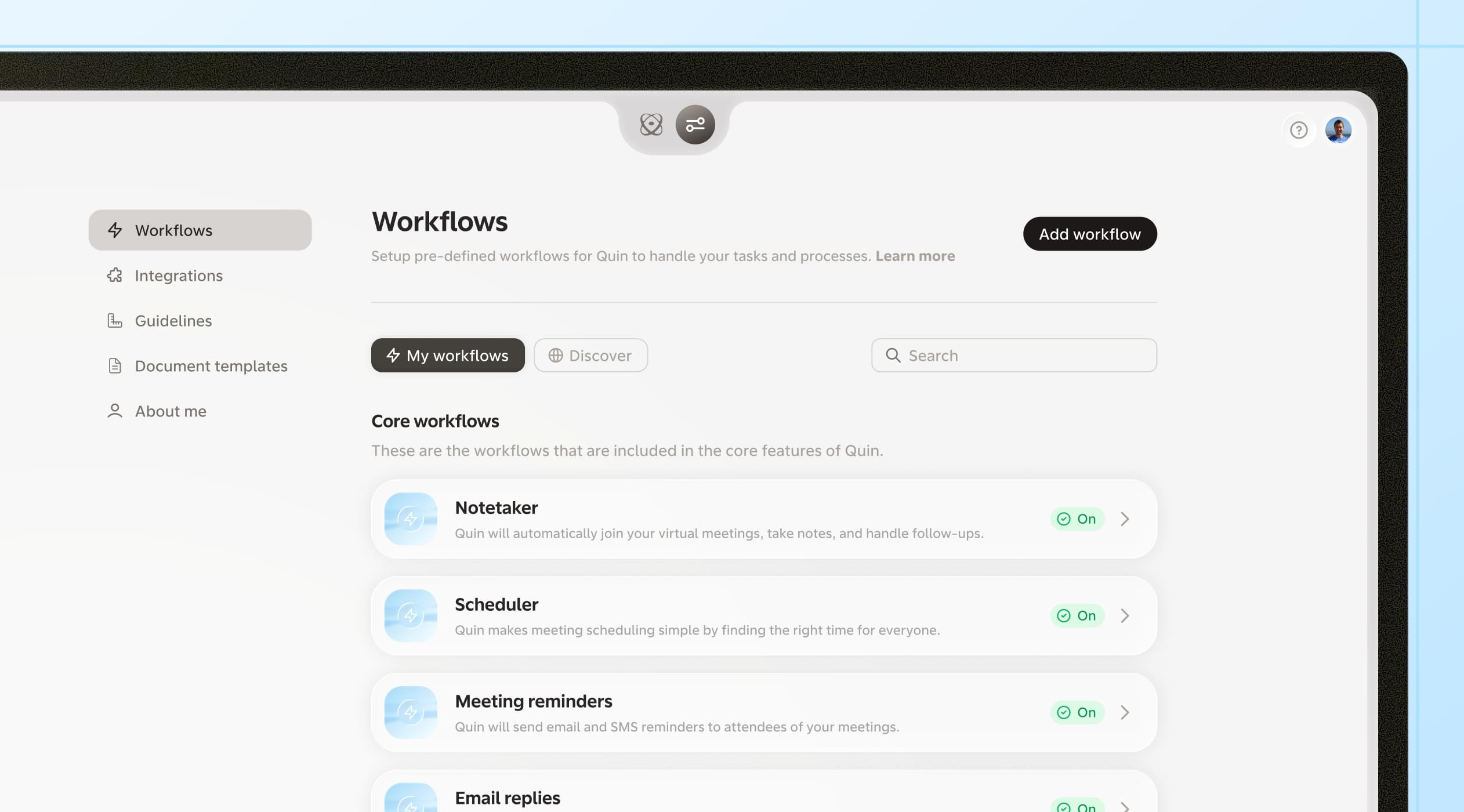
Quin Knowledge is live, and your plan now shows hours instead of credits
September 14, 2026

Quin Knowledge is live, and it works alongside a second change: your plan and usage page now show hours instead of credits. Neither is a big shift by itself, but both make Quin easier to work with day to day.
Quin Knowledge is live
Firms have always had documents that answer the same questions over and over: a fee schedule, an onboarding checklist, a policy on late payments. Those documents already exist, but the answer usually still comes from whoever remembers where the file is. Quin Knowledge gives that information a place Quin can actually reference.
Write a knowledge article directly in Quin, or upload a file in PDF, Word, image, or plain text format, and Quin pulls the text out automatically. Say a client asks what your investment minimum is, or how your firm handles a late payment. Quin already has the answer, and brings it into the conversation on its own, without you having to ask for it directly.
Knowledge works the same everywhere Quin operates: chat, email, the notetaker, and your workflows. There's nothing to turn on per workflow. If you manage a team, you can also share knowledge articles across the whole account instead of setting them up for each person individually.
Your plan now shows hours, not credits
Your plan and usage page also changed today. Instead of showing a credit total, they now show hours. This is not a price increase or a price decrease. Your price, your plan, and everything Quin does for you stay exactly the same. The only thing that changed is the number you're looking at.
Credits were never a number most people could get a feel for. A total like 2,500 credits doesn't tell you much on its own. Hours are something you already know how to think about, especially if you've ever weighed what an assistant's time is worth against doing something yourself.
Getting started
- Add your first knowledge article. Go to Settings, then Knowledge, and write or upload the first document you want Quin to reference.
- Share it with your team. If you manage a team, turn on account-wide sharing so knowledge articles apply for everyone, not just the person who added them.
- Check your usage page. Your plan and usage already display in hours, nothing else to set up.
Two small changes, both aimed at making Quin a little easier to work with.
#skills