Quin Knowledge is live
September 14, 2026
Every firm has a handful of facts that live in one place: a fee schedule, a brand voice guide, a policy on late payments, an onboarding checklist for new hires. None of it is complicated, but most of it lives in one or two people's heads, or in a document nobody remembers to open. When someone on the team has a question, they ask whoever remembers, and if that person is out or has moved on, the answer takes longer to find than it should.
That gap widens as a team grows. A new hire asks the same onboarding question in their second week that the last new hire asked. A client asks about a fee structure, and the answer depends on which team member picks up the phone. None of this is a crisis on its own, but it adds up to slower answers and inconsistent ones, and it keeps institutional knowledge tied to specific people instead of the firm itself.
How Quin Knowledge works
Quin Knowledge gives that information a place to live that Quin can actually reference. Write an article directly in Quin, or upload a file in PDF, Word, image, or plain text format, and Quin pulls the text out on its own.
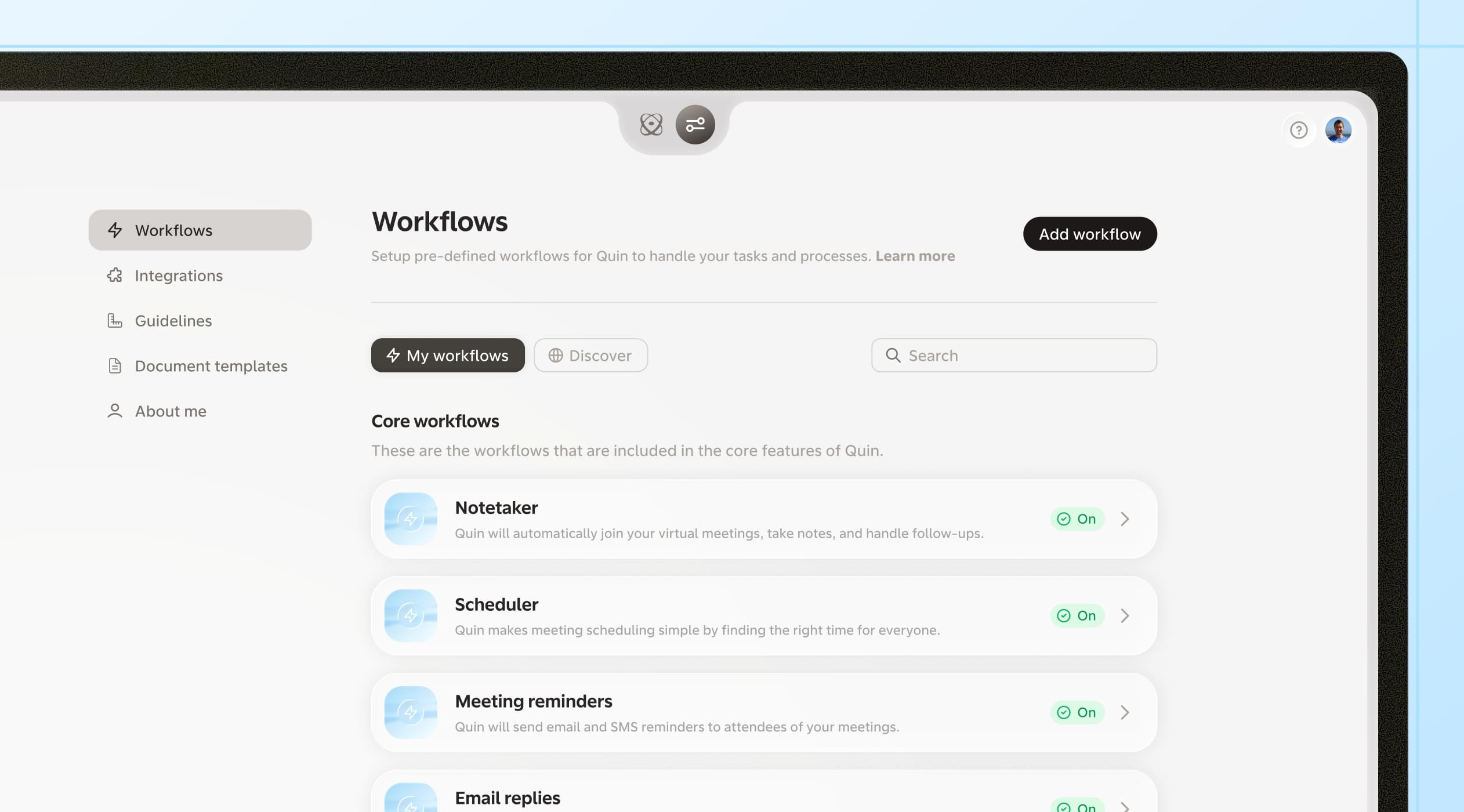
Knowledge works differently from Quin's other settings. About Me holds your writing style and preferences, and Guidelines are rules Quin checks on every task. Knowledge isn't something you ask for directly. Quin decides on its own when a question calls for it, a company policy, a process, a fact about how the business runs, and pulls it in only then.
It works the same way everywhere Quin operates: chat, email, the notetaker, and your workflows. There's nothing to turn on per workflow. If you manage a team, you can also share knowledge articles across the whole account, so the answer doesn't have to be set up person by person.
An example
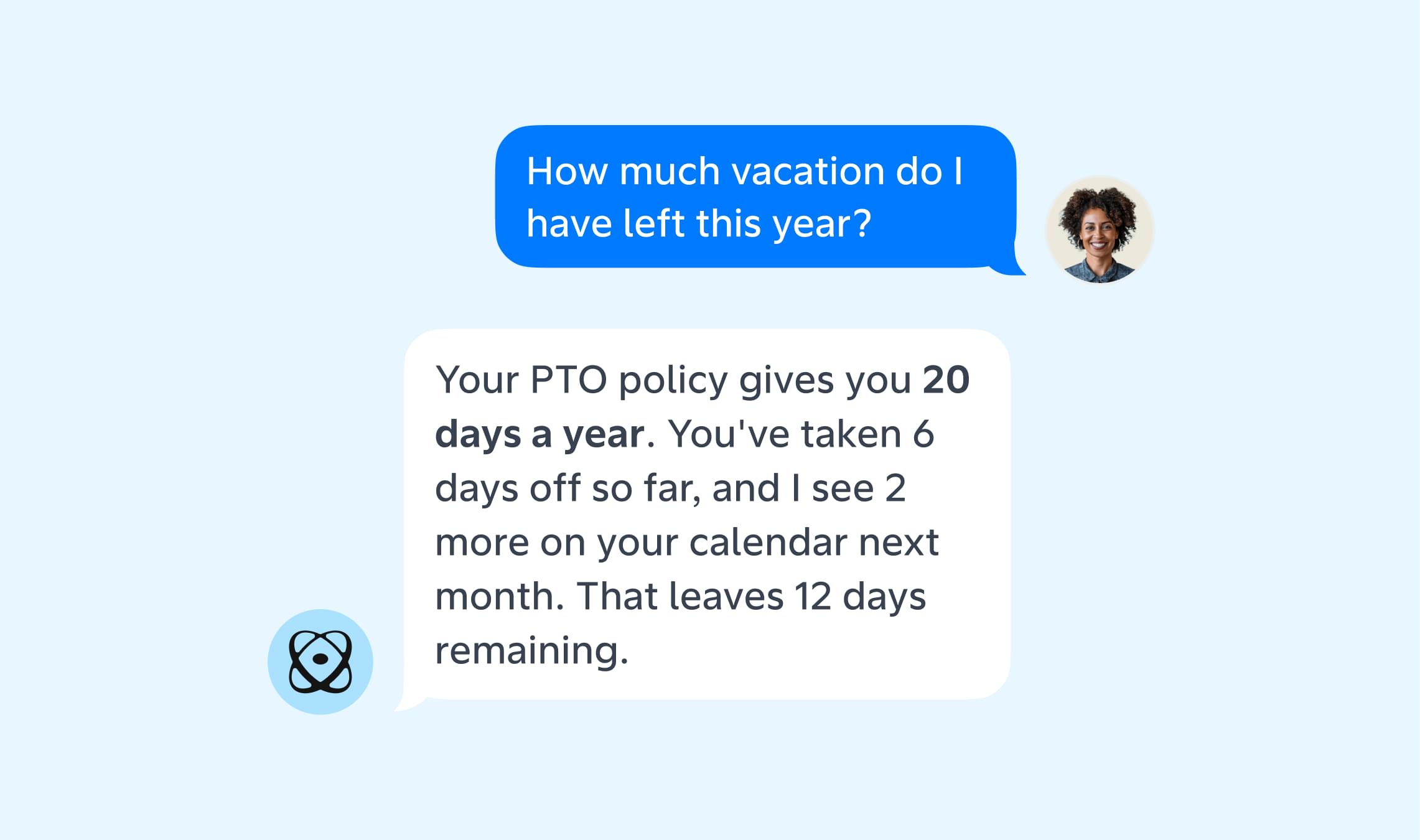
A client asks what your investment minimum is, or how your firm handles a late payment. Quin already has the answer on file, and brings it into the conversation on its own, without being asked directly.
Getting started
- Add your first knowledge article. Go to Settings, then Knowledge, and write or upload the first document you want Quin to reference.
- Share it with your team. If you manage a team, turn on account-wide sharing so knowledge articles apply for everyone, not just the person who added them.
One less question that has to go through a specific person to get answered.
#skills